Collaboration and Project Management
Learn how to work with teams and manage shared test scenarios.
Projects and Team Sharing
Scenarios in Probium are organized into projects. Projects allow multiple users to collaborate on test scenarios, making it easy to distribute testing responsibilities across your team.
What Are Projects?
A project is a container for related test scenarios. Projects enable:
- Organizing scenarios by application, feature, or team
- Sharing test scenarios with team members
- Collaborative test development and maintenance
- Centralized test management for teams
Adding Collaborators
Share your project with team members to enable collaboration.
How to Add a Collaborator
- Locate the Share Icon: Click the Share project icon next to the project name

- Enter Email: In the dialog that opens, enter the collaborator's email address in the Add collaborator field
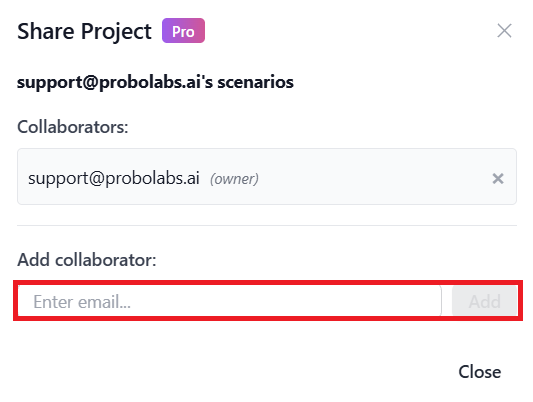
- Add User: Click Add
- Confirmation: The user will now have access to all scenarios in the project
Collaborator Permissions
All team members added to a project can:
- ✓ View all scenarios in the project
- ✓ Edit scenarios (subject to locking rules)
- ✓ Create new scenarios
- ✓ Run and replay scenarios
- ✓ Export scenarios as code
- ✓ Manage parameters and parameter sets
Access Control and Scenario Locking
To prevent conflicts when multiple team members work on the same project, Probium implements an automatic locking system.
How Locking Works
When a User Opens a Scenario
The scenario is automatically locked from editing by other team members. This prevents two people from making conflicting changes simultaneously.

Other Team Members
Can view the scenario's contents but cannot make changes while it's locked. They'll see an indication that the scenario is being edited by another user.
Lock Release
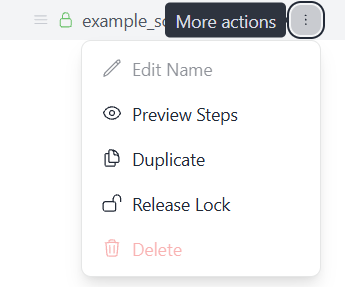
The lock is automatically released when the user opens a different scenario or starts recording a new one. This ensures locks don't remain indefinitely. The lock can also be released manually.
Best Practices for Team Collaboration
- Close scenarios when done: Switch to a different scenario or close the side panel when you're finished editing to release the lock
- Communicate with team: Use team chat or project management tools to coordinate who's working on which scenarios
- Check lock status: If a scenario is locked, contact the team member who has it open if you need to make urgent changes
- Organize by feature: Create separate scenarios for different features to minimize editing conflicts
- Regular sync: Regularly check for updates from team members to stay current with scenario changes
Collaboration Workflow Example
Morning Standup: Team discusses which scenarios need work and assigns tasks
Developer A: Opens "Login Flow" scenario to add 2FA steps, scenario is locked
Developer B: Tries to open "Login Flow", sees it's locked by Developer A, works on "Checkout Flow" instead
Developer A Finishes: Switches to a different scenario, lock on "Login Flow" is released
Developer B Returns: Can now edit "Login Flow" to add parameter sets for different users