Test Suites
Test suites allow you to group multiple scenarios from the same project and execute them together. This is efficient for running comprehensive test batches and monitoring results in one place.
Creating a Test Suite
- Click the Suites button in the bottom toolbar of the application. The Test suites tab will open.

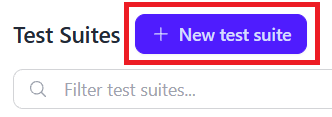
- Click New test suite.
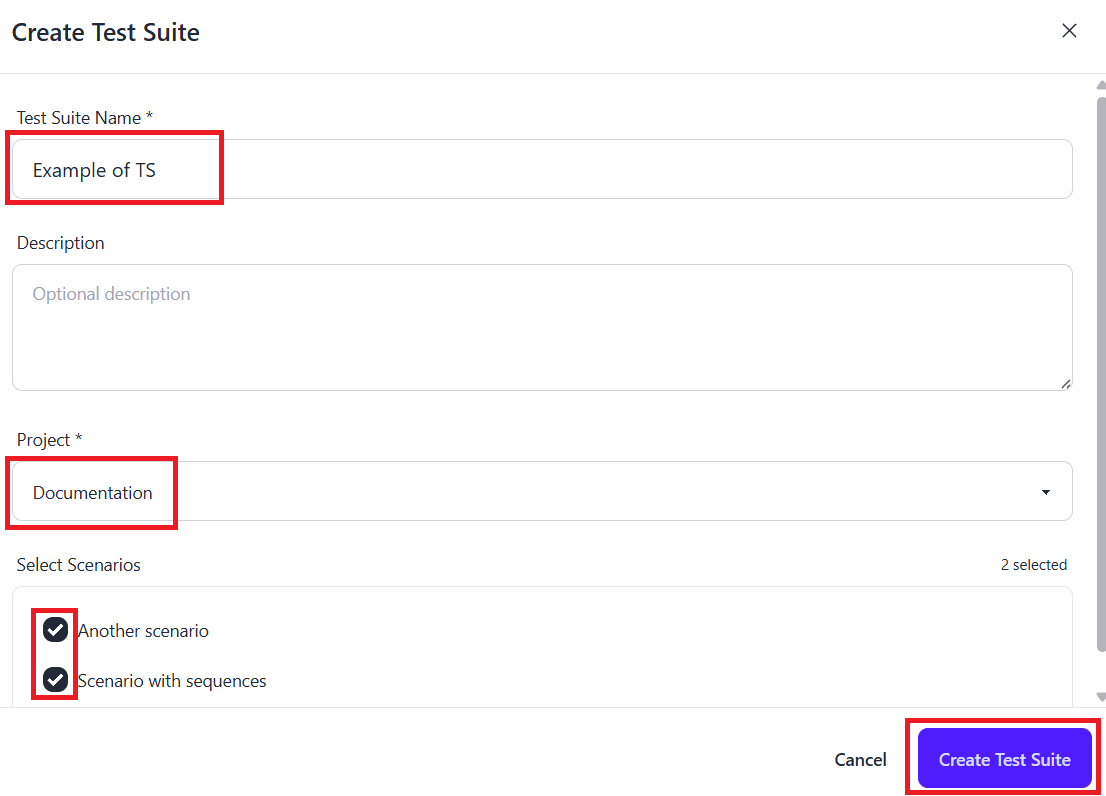
- Enter a name for your suite.
- Select the Project containing the scenarios you want to include.
- Select the scenarios you want to add.
- Save your selection.
Running a Test Suite from the Interface
- Open the Suites section and locate your suite under the ALL TEST SUITES menu.
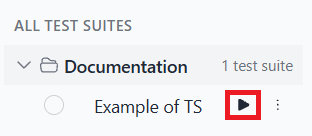
- Click the Run icon next to the desired suite.
- A new entry will appear in the execution list. Click it to monitor real-time progress.
- Once finished, click View report to open a detailed report of the test results.

Running in CI/CD
To integrate your test suite into a CI/CD pipeline:
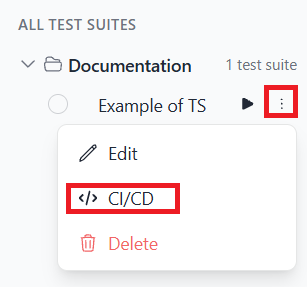
- Open the context menu for the specific test suite.
- Select the CI/CD option to receive setup instructions.
Note: All scenarios in a suite must belong to the same project. If you move a scenario to a different project, it will be automatically removed from the test suite.