Debugging and Step-by-Step Execution
Learn how to debug scenarios using breakpoints and step-by-step execution.
Step-by-Step Scenario Execution
You can execute scenarios partially or step-by-step using breakpoints and the Debug menu.
Setting Breakpoints
Place a breakpoint on any step where you want execution to pause. You can set multiple breakpoints throughout your scenario to control execution flow precisely.
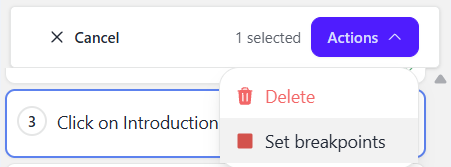
Breakpoints are useful for inspecting the state of the page at specific points during test execution or for adding new steps mid-scenario.
Debug Menu Options
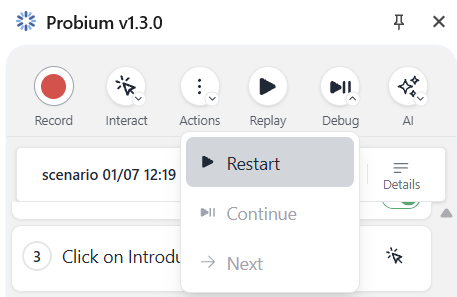
Start
Begins execution from the first step and runs until the first breakpoint is reached, or until the end if no breakpoints are set.
Use when: You want to run the scenario from the beginning up to a specific point.
Continue
Resumes execution from the current position and runs until the next breakpoint, or until the end if no more breakpoints exist.
Use when: You've paused at a breakpoint and want to continue to the next breakpoint or completion.
Step
Executes only the next single step in the scenario, then pauses.
Use when: You want to carefully observe each step's execution and its effect on the page.
Debugging Workflow
Use breakpoints and step-by-step execution to:
- Troubleshoot failing scenarios by isolating problematic steps
- Verify individual steps work correctly before running the entire scenario
- Inspect page state at specific points in the test flow
- Test partial scenario execution during development
Example Debugging Session
- Set a breakpoint on step 5 (where you suspect an issue)
- Click Start in the Debug menu
- The scenario runs steps 1-4 and pauses at step 5
- Inspect the page to verify the state is correct
- Click Step to execute step 5 and observe what happens
- If the issue is found, fix it; otherwise, continue stepping or use Continue