Parameter Management
Learn how to manage test data and parameters in your scenarios.
Parameters Table Overview
The Parameters table stores all textual data captured during scenario recording and execution.
Types of Parameters
Navigation Data
- URLs of web pages visited
Form Data
- Data entered into online forms
- Input field values
Validation Data
- Expected text values for Assert steps
- Text values for Wait For steps
Dynamic Data
- Extracted text from Extract steps
- Results from Ask AI steps
- Output from custom scripts
Viewing the Parameters Table
Click the Params button in the bottom toolbar of the side panel. The parameters table will open in the main browser window.

Editing and Binding Parameters
Editing Parameters
- Open the Parameters table
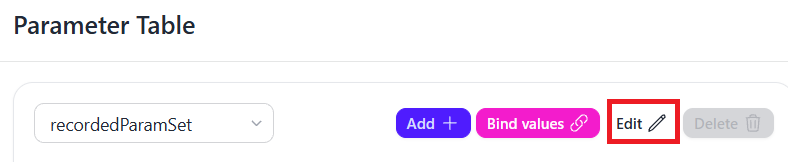
- Click the Edit button
- Modify the parameter values as needed
- Confirm or cancel your changes
Linking Parameters
You can link parameters together by referencing one parameter's variable name in another parameter's value.
Manual Linking
When editing a parameter value, you can reference another parameter by using its variable name. This creates a link where the value is dynamically pulled from the referenced parameter.
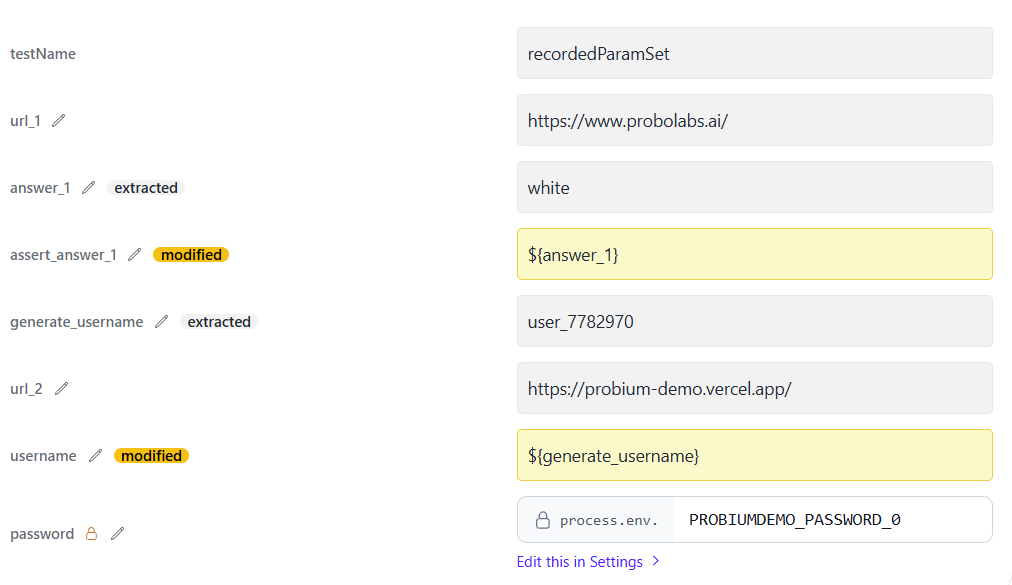
Example: If parameter user_email has the value "test@example.com", you can set another parameter's value to reference ${user_email} so it always uses the same email.
Automatic Binding
Click the Bind values button to automatically link parameters with identical text values:
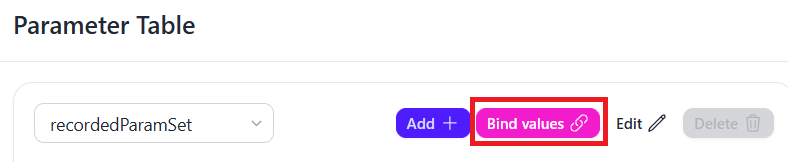
- Probium groups all parameters with the same value
- For each group, the first parameter becomes the primary
- The primary parameter retains its value unchanged
- All other parameters in the group reference the primary parameter's name
Benefit: Linking parameters means you only need to update one value, and all linked parameters will automatically use the new value.
Parameter Sets and Cloning
You can create multiple parameter sets for a single scenario, allowing you to run the same test with different data.
Creating a New Parameter Set
- Open the Parameters table
- Click the Clone button
- A copy of the current parameter set is created
- Edit the new parameter set as needed
- Save your changes
Selecting a Parameter Set for Replay
- Click on the scenario's Details
- In the Active Parameter Set dropdown, select the desired set
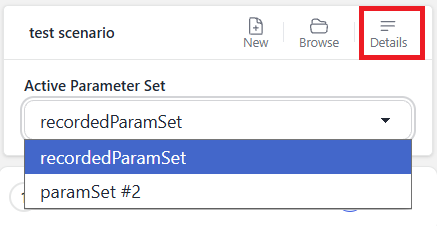
- When you replay the scenario, it will use the selected parameter set
Use Cases for Multiple Parameter Sets
- Testing with different user accounts (admin, regular user, guest)
- Running the same flow with various input data
- Testing edge cases and boundary conditions
- Data-driven testing scenarios
- Testing in different environments (dev, staging, production)
Security and Secret Parameters
Probium takes your security seriously and handles sensitive data with special care.
Important Security Notice
We do NOT store sensitive information (such as passwords used in authentication scenarios) on our servers. This data is stored exclusively on your local computer.
What Are Secret Parameters?
When you record scenarios involving sensitive information, these values are automatically marked as secret:
- Login passwords
- Authentication tokens
- Other confidential data
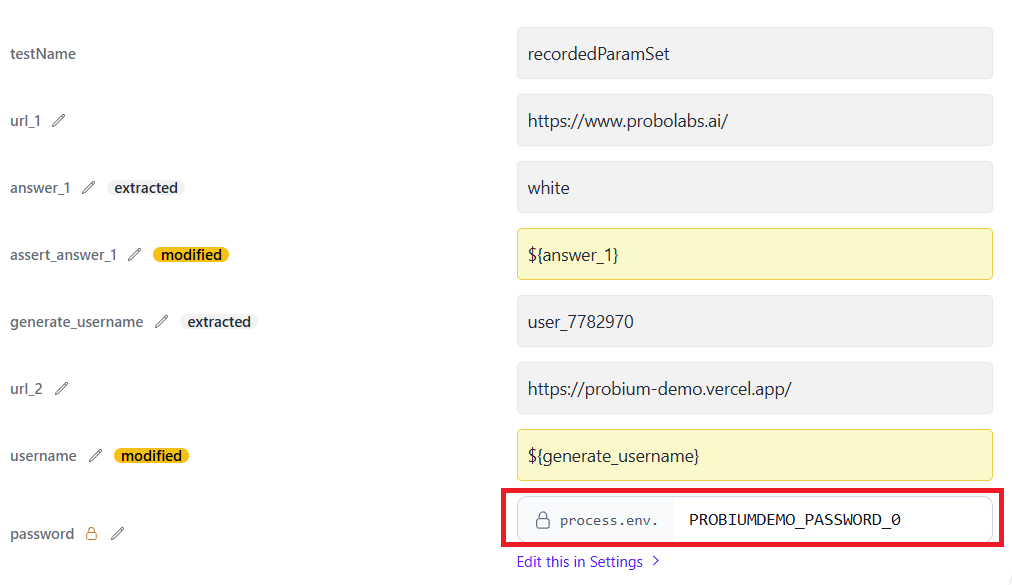
How Secret Parameters Work
- 🔒 Local Storage: Secret values are stored only in your local environment
- 🔒 Never Transmitted: Your sensitive data never leaves your computer
- 🔒 Automatic Detection: Probium automatically identifies password fields and other sensitive inputs
- 🔒 Secure Replay: During replay, secrets are retrieved from local storage only
How to Edit Secret Parameters
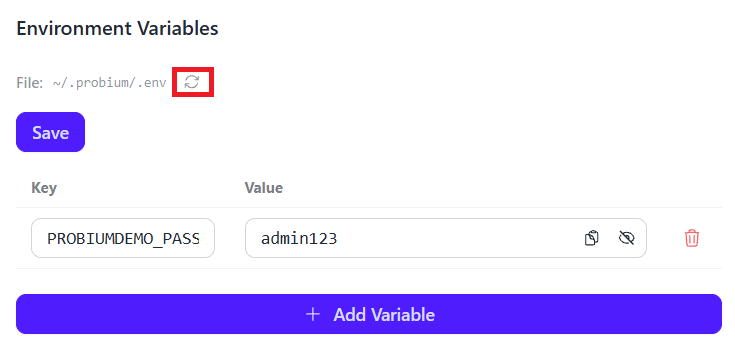
Probium prioritizes security by storing sensitive data, such as passwords, locally on your computer rather than on its servers. These values are stored in a file named .env in your home directory (e.g., C://Users/<Your username>/.probium/.env on Windows).
Method 1: Using the App Settings
- Click on Settings at the bottom of the side panel.

- Locate the Environmental Variables section.
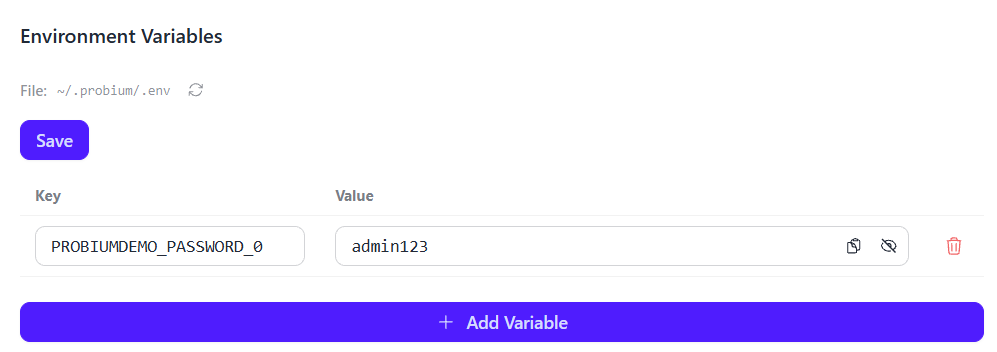
- Add, delete, or update the values of your secret parameters directly in the interface.
- Click on the Save button.
Method 2: Manual File Editing
- Open the
.envfile located in the~/.probium/folder using any text editor. - Modify the parameters and save the file.
- To sync these changes with the app, click the Reload icon in the application settings.