Main Usage Scenarios
Learn the core workflows for working with Probium test scenarios.
Scenario Recording
Recording allows you to capture all interactions with a website, which can then be replayed automatically.
How to Record
- Launch the Application: Start Probium on your computer. This will open a browser with the Probium extension installed.
- Open the Side Panel: Click the Probium icon in the browser toolbar to open the side panel interface.
- Navigate to Target Website: In the main browser window, navigate to the website you want to test.
- Start Recording: Click the Record button in the side panel.
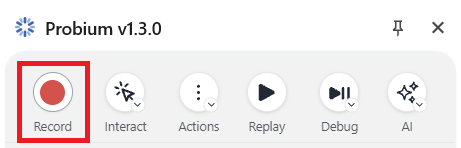
- Interact with the Website: Perform your desired actions (clicks, form filling, scrolling, etc.). All interactions will be recorded.
- Stop Recording: Click the Record button again to stop and save your scenario.
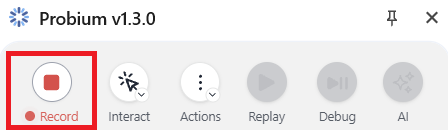
Tip: Plan your test scenario before recording. Think about the user flow you want to capture and any validations you want to include.
Scenario Replay
Once you've recorded a scenario, you can replay it to automatically execute all the recorded steps.
How to Replay
- Select Your Scenario: Choose the scenario you want to replay from your list of saved scenarios.
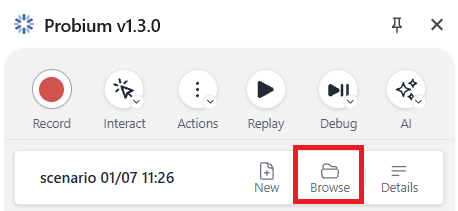
- Click Replay: Press the Replay button in the toolbar.
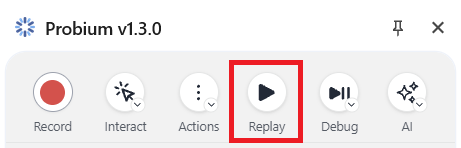
- The application will automatically perform all recorded actions in sequence.
The replay functionality executes each step exactly as it was recorded, allowing you to verify that your website behaves consistently across different runs.
Scenario Fortification
Fortification is an AI-powered process that makes your test scenarios more resilient to changes in the website's structure.
How It Works
During fortification, Probium generates AI prompts for each step in your scenario. These prompts enable the system to locate page elements even when their CSS selectors have changed.
How to Fortify Your Scenario
- Select Your Scenario: Choose the scenario you want to fortify from your list of saved scenarios.
- Start Fortification: Press the Apply AI button in the toolbar.
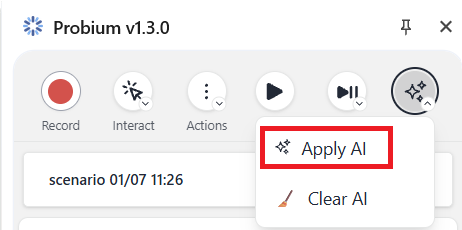
- The application will automatically perform all recorded actions in sequence, creating prompts for each step.
Benefits of Fortification
- ✓ Tests remain functional even when website structure changes
- ✓ Reduces test maintenance overhead significantly
- ✓ Uses AI to intelligently locate elements based on context
- ✓ Increases test reliability and longevity
Best Practice: Fortify your scenarios after recording them to ensure they remain stable as your website evolves.